


Compress Video - Size Reducer
4.6112.00 Reviews
App Specs
- Version
- 4.1.0
- Updated On
- License
- Free
- Downloads
- 500,000+
- Developer
- DictionaryAndTranslator
- Categories
- Video Players & Editors
- Platform
- Android
Screenshots
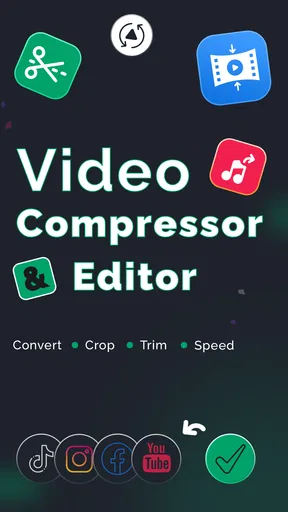
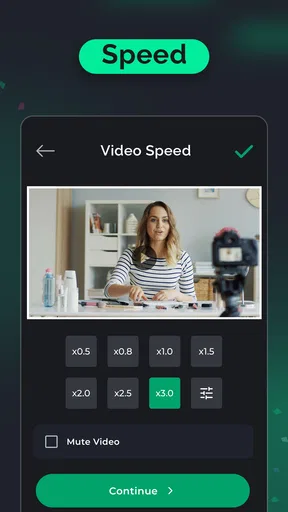
 Analysis by AppCompare
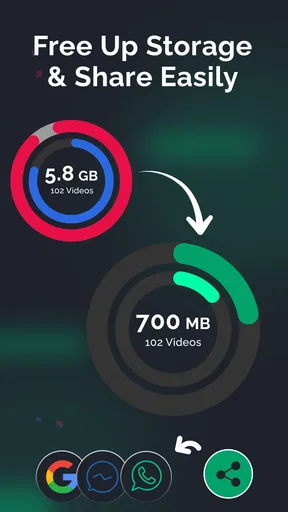
When a phone starts warning me about storage, videos are often the first files I look at: a few long clips can be harder to manage than a folder of photos. Compress Video - Size Reducer is built for that practical problem. It is a free video utility from DictionaryAndTranslator, with a straightforward purpose: reduce video file size and make it easier to keep, share, or pass along clips. My view is that it makes most sense as a focused space-saving tool, not as a replacement for a full video editor.
Who will get the most from it
I would consider this app if I regularly record family events, trips, or everyday moments and want to keep more of those clips on my phone. It can also suit someone who needs a smaller file before sharing a video, or who wants to trim away an unneeded section rather than keep the whole recording. The useful question is not simply whether a clip can be made smaller, but whether the saved space is worth any change in picture detail.
A realistic example: after recording several clips at a birthday, I might want to send one to relatives and keep the rest for later. I would work on a copy of the clip I plan to share, preview the result, and compare the compressed version with the original before deciding whether the quality is good enough. Keeping the source until I am satisfied is a sensible habit with any compression tool, especially for a moment I cannot re-record.
Choosing a sensible compression workflow
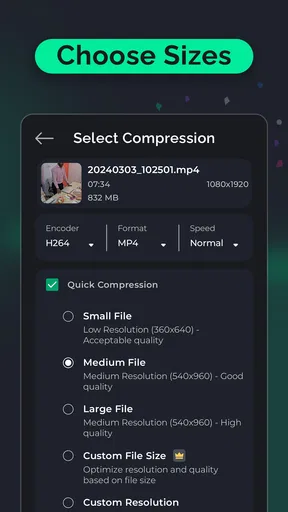
Compression is a trade-off, not a magic way to shrink a file without changing it. A more aggressive setting can be useful for a clip that is mainly being sent for quick viewing, while footage with fine detail, movement, or dim lighting deserves a more cautious choice. I would start with a short test or a less aggressive setting when the video matters, then inspect the result on the screen where it will actually be watched.
Resolution and bitrate choices are worth treating as separate controls rather than turning everything down at once. Lowering resolution may be reasonable when a video will only be viewed in a small chat window, but it can look soft on a larger display. Bitrate affects how much visual information is retained, so reducing it too far can make motion or textured scenes look rough. If the app offers a preview, I would use it to check faces, fast movement, and fine details before processing a longer recording.
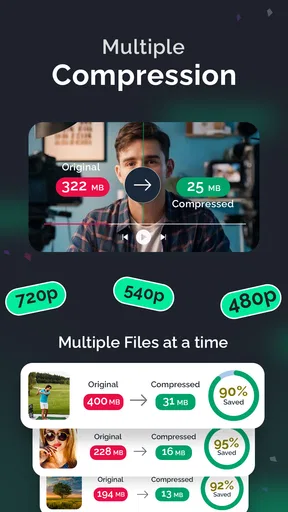
Batch processing can save repetitive effort when several clips need similar treatment, but it is not automatically the best route for every folder. Different videos can respond differently to the same settings: a static landscape and a fast-moving sports clip do not have identical needs. For a set of mixed footage, I would process a representative clip first, check the outcome, and only then apply a similar approach to the rest. That small pause can prevent a batch of important recordings from all ending up smaller but less watchable.
How it fits beside other video tools
Compared with a full editing app, a dedicated compressor is appealing when I want to solve one problem without working through a timeline, titles, transitions, or other editing controls. A phone’s built-in gallery tools may be enough for a simple trim, and a general editor is a better choice when I need to rearrange scenes or polish a finished video. This app’s appeal is the narrower job: make a clip more manageable, with trimming and audio extraction as additional practical options.
Worth Reading Before You Choose

Flipboard Shows What News Apps Must Do Beyond the Feed

Switching to Android Auto Means Rethinking Your Driving Routine

Google Calendar Makes a Crowded Week Easier to Manage

Ludo King Makes the Most of the Minutes Between Plans

Baby Panda World Brings Quick Play to Modern Phones, but Its Game Library Feels Busy

ESPN’s Live Game View Makes Following Close Games Easier
It is also worth separating compression from cloud storage. Uploading an original to a cloud service can free local space, but it still relies on an internet connection and may not help when I need to send a smaller attachment immediately. Compression can make a local file easier to handle, but it does not replace keeping a backup of footage I care about. I would not use a reduced copy as the only version of a personal recording.
Current state and product context
The app sits in the video players and editors category, though its day-to-day role is closer to a utility than a broad editing suite. It has a 4.5 average from around 4.7 thousand ratings and has passed 100 thousand installs. Those figures suggest that people are finding a use for it, but they do not tell me whether a particular compression setting will suit every video or device.
It is rated for Everyone and is free to install, with optional in-app purchases ranging from $0.99 to $99.99 per item. I would check the purchase screen carefully before confirming anything, particularly if I only need occasional compression. The current version is 4.1.0, and the app was released on April 17, 2024. Those are useful points of context for someone deciding whether to try it; they are not, by themselves, evidence of a specific change or improvement in that version.
What to keep in mind before processing
My first practical check would be the destination for the finished clip. If I am sending it in a messaging app, I would aim for a file that is convenient to share while still looking clear on a phone. If I am archiving a memorable event or expect to watch it on a larger display later, I would preserve the original and use a restrained compressed copy only when I need one. That approach avoids treating one small output file as the right version for every purpose.
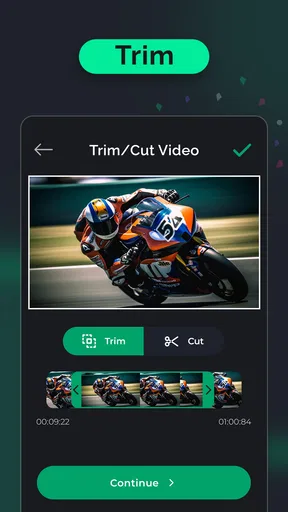
Trimming can sometimes save space more cleanly than heavy compression. If the unwanted material is an empty lead-in or a long pause at the end, cutting it may reduce the clip without lowering the quality of the useful section. Audio extraction is a different kind of task: it can help when I want the sound from a video, but it does not replace a dedicated audio editor if I need detailed sound cleanup. These options are most useful when they match the job, rather than as reasons to open the app for every media task.
There are limits to what I would expect from a small mobile utility. Compression can take time, especially when several videos are handled together, and batch work calls for a little more checking than a single clip. The published experience also notes occasional lag during batch processing. I would avoid starting a large job when I need the phone immediately, and I would make sure the device has enough free working space to handle the files being processed. For a one-off clip, a simple workflow is likely to feel more convenient than a broad editing package; for a large library that needs careful cataloguing or advanced edits, another tool may be a better fit.
Compatibility is another quick thing to check: the stated minimum operating-system requirement is version 8.0. If a device meets that requirement, it is still sensible to consider how much storage and processing headroom are available before working with several large videos. I would also review the final saved file before deleting or replacing anything, so I know the result is present and plays as expected.
Getting Started with Compress Video - Size Reducer
First things first, downloading and setting up Compress Video - Size Reducer is a breeze. Available for both Android and iOS, it’s just a quick search away on the App Store or Google Play. Once installed, you’re greeted with a clean and intuitive interface that even the least tech-savvy among us will find easy to navigate. No endless tutorials needed here!
Interface and Usability
The app’s layout is straightforward, which I appreciate. There’s no clutter, just a simple menu that lets you choose between different video compression options. You can either compress a single video or batch process multiple videos at once. This feature is a lifesaver for those like me who have a backlog of videos waiting to be downsized.
One of the standout features is the drag-and-drop functionality. It’s smooth and responsive, allowing you to effortlessly select your videos. For those moments when you’re in a hurry, the quick preview option is a real time-saver, letting you see a snippet of your video before deciding on the compression settings.
Performance and Features
Now, onto the performance. The app offers several compression levels, from low to high. I tried compressing a 10-minute video at each level, and here’s what I found: the high compression setting significantly reduces file size without drastically compromising quality. This is a big win for anyone looking to save space without sacrificing the clarity of their videos.
Another nifty feature is the ability to choose the resolution and bitrate. This gives you more control over the final output, which is ideal if you’re looking to balance quality and file size. A heads up, though—choosing the highest compression might result in a slight loss of detail, so it’s all about finding that sweet spot.
Extra Features
Apart from compression, the app also allows you to trim videos, which is perfect for cutting out those awkward pauses or unnecessary parts. There’s even an option to extract audio from videos. I found this particularly useful for creating quick audio snippets from my favorite clips.
For the social media enthusiasts, the app supports direct sharing to platforms like Instagram, Facebook, or WhatsApp. With just a tap, you can impress your friends with your newly compressed videos without leaving the app.
Final Thoughts
All in all, Compress Video - Size Reducer is a handy tool for anyone looking to manage their video files more efficiently. Its user-friendly interface and robust features make it a must-have for video hoarders like myself. Sure, there are a few minor hitches, like the occasional lag during batch processing, but these are minor when you consider the overall performance.
Whether you’re running out of storage or just want to keep your videos more organized, this app is worth giving a shot. You’ll find it especially useful if you’re constantly on the move and need a quick, reliable way to compress videos without diving into heavy-duty editing software.
So, if you’re ready to reclaim some space on your device while keeping your video library intact, go ahead and download the app. You might just find it to be your new favorite tool!
Pros
- User-friendly interface for quick navigation.
- Maintains video quality after compression.
- Supports various video formats.
- Fast processing speed for large files.
- No intrusive ads during compression.
Cons
- Limited free version features.
- Requires internet for some functions.
- Occasional app crashes reported.
- No batch processing available.
- No cloud storage integration.
FAQs for Compress Video - Size Reducer
What is the primary function of the Compress Video - Size Reducer app?
The Compress Video - Size Reducer app is designed to reduce the file size of your videos without significantly compromising quality. This is especially useful for freeing up storage space on your device and making it easier to share videos via email or social media, where size limits often apply.
Does the app affect video quality during compression?
The app uses advanced algorithms to minimize the impact on video quality during compression. While there might be some reduction in quality, the app offers settings to balance between size reduction and quality retention, allowing users to choose the most suitable option for their needs.
Is the Compress Video - Size Reducer app easy to use for beginners?
Yes, the app is designed with a user-friendly interface that makes it accessible for beginners. It offers step-by-step instructions and intuitive controls, enabling users to compress videos quickly and efficiently without requiring technical expertise.
Are there any limitations on the types of video files the app can compress?
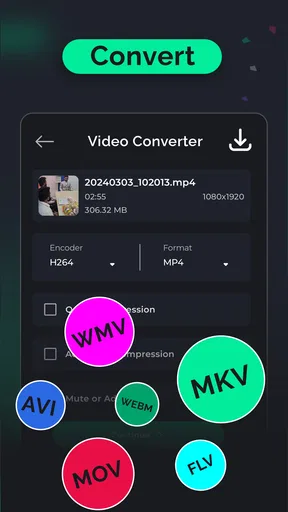
The app supports a wide range of video formats, including MP4, AVI, and MOV, among others. However, it's always a good idea to check the app’s specifications to ensure compatibility with your particular video files to avoid any potential issues.
Does the app offer any additional features beyond video compression?
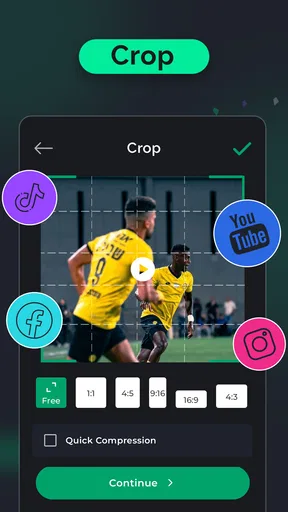
In addition to video compression, the app may offer features such as batch processing, conversion to different file formats, and basic editing tools like trimming and cropping. These additional features enhance its utility, making it a versatile tool for video management.


